
PC BOTTLENECK CALCULATOR
SELECT YOUR HARDWARE · GET INSTANT PERFORMANCE ANALYSIS
FIND OUT EXACTLY WHICH COMPONENT IS HOLDING YOUR SYSTEM BACK
| Resolution | Bottleneck % | Limiting Component | Assessment |
|---|
| Resolution | 30+ FPS | 60+ FPS | 90+ FPS | 120+ FPS | 144+ FPS |
|---|
* Estimates based on hardware benchmark scores
Features That Make Our Calculator Smarter
We built this tool for serious gamers and PC builders who want data that actually matters. Our Bottleneck Calculator uses a comprehensive performance database and advance analysis methods, unlike generic tools that rely on limited estimates. It gives you precise, accurate results with smart suggestions to achieve optimal results.
Real Benchmark Data
Powered by real benchmarks from thousands of systems, our results shows how CPUs and GPUs work together under real-world loads.
Smart Algorithm
It goes beyond basic specifications by considering architecture, core performance, and clock speeds to determine true component balance.
Upgrade Simulation
Preview how your system would perform with different components before making any purchase decisions. Perfect for planning your next build.
User Friendly Interface
Simple, clean, and mobile friendly design that works instantly in any browser. No signup or registration needed.
Optimised for Gamers
Optimized for gaming, streaming, rendering, and other intensive tasks where component balance truly matters.
No Download, No Fee
No software downloads or installation required! This web tool is super easy to use. And there is no subscription fee, its totally free.
How the Bottleneck Calculator Works
Our bottleneck calculator uses real data like CPU and GPU PassMark, UserBenchmark, or 3DMark and advanced algorithms to analyze your system. It identifies which component limits your PC’s potential and suggests how to fix it for maximum efficiency.
Enter Your PC Details
Choose your CPU, GPU, and RAM. You can select or even search your model of CPU or GPU for easy input.
Get Your Bottleneck Score
The calculator compares your selected parts against verified benchmark results. Then it shows how balanced your system is along with CPU and GPU performance score.
View Actionable Insights
Instantly see which component is slowing you down and get smart recommendations to overcome bottleneck issues or plan your next upgrade.
See the Bottleneck Calculator in Action
Watch this guide to understand how to use the calculator, interpret your results, and make the right upgrade decisions.
Understanding the Bottleneck Percentage
Here’s what each bottleneck score range means and what action you should take.
| Percentage | Status | Meaning | Suggested Actions |
|---|---|---|---|
| 0–10% | Optimal | Perfect balance between components | Enjoy full system performance |
| 11–20% | Minor | Slight imbalance — largely unnoticeable | Monitor or tweak in-game settings |
| 21–30% | Noticeable | Visible impact in demanding tasks | Plan for an upgrade in the near future |
| 31–50% | Significant | Limiting component holding system back | Upgrade recommended as soon as possible |
| 50%+ | Critical | Major imbalance — severe performance loss | Replace the limiting component immediately |
CPU score much lower than GPU? Your processor is the bottleneck — consider a CPU upgrade to unlock your GPU’s full potential.
GPU score much lower than CPU? Your graphics card is the limiting factor — a GPU upgrade will have the most impact on gaming performance.
For gaming setups, aim for the GPU to slightly lead the CPU — this is the ideal balance for maximising frame rates and visual quality.
Ensure at least 16 GB RAM for modern workloads. Insufficient memory causes stuttering and skews bottleneck results.
Balanced systems under 10% bottleneck yield the best performance per dollar — balance always beats chasing raw spec numbers.
What Is a PC Bottleneck and Why It Matters
A PC bottleneck is when one component can’t keep up with the rest — and it affects your experience more than raw specs ever reveal.
The Core Problem
Usually shows up between the processor and graphics card — one finishes its work fast while the other becomes the limiting factor. Your PC never reaches the performance you paid for.
How You Feel It
Games run with unstable frame rates — some scenes smooth, others stuttering. One component at 100% load while the other barely breaks a sweat. Especially bad in demanding titles and streaming.
Why This Matters Before Upgrading
Many users upgrade the wrong part. Balance matters more than raw power. Knowing the limitation lets you spend smarter and see real improvements — not just benchmark wins.
Types of PC Bottlenecks and How to Fix Them
Every bottleneck type has distinct symptoms and targeted fixes. Learn to identify them fast.
A CPU bottleneck occurs when the processor cannot keep up with the workload created by the graphics card or the software you are running. In simple terms, the CPU becomes the slowest part of the system, forcing everything else to wait.
This problem is common in gaming and performance-heavy tasks. The CPU is responsible for handling game logic, physics, background processes, and feeding data to the GPU. If it struggles to do that fast enough, the graphics card sits idle even though it has more performance available.
Common Signs of a CPU Bottleneck
You might be dealing with a CPU bottleneck if you notice:
These issues are especially noticeable in CPU-heavy games, competitive titles, and simulations where processing speed matters more than visual quality.
What Causes a CPU Bottleneck
- Pairing an older or entry-level processor with a modern GPU
- Running games at low resolution where the CPU has more work
- Background applications consuming CPU resources
- Using slower memory that limits processor performance
Even a decent processor can become a bottleneck if the workload increases beyond what it was designed to handle.
Why a CPU Bottleneck Matters
When the CPU is the limiting factor, upgrading your graphics card will not fix performance issues. The system will continue to feel uneven because the processor cannot supply data fast enough.
Fix: A CPU bottleneck can often be reduced by closing background apps and lowering CPU-heavy game settings such as view distance or simulations. If the issue remains, upgrading to a processor with more cores or a higher clock speed, or using faster, properly configured RAM, usually brings the system back into balance.
A GPU bottleneck happens when the graphics card is the part holding your system back. In this case, the processor is ready to do more work, but the GPU cannot render frames fast enough to keep up. This is a very common situation, especially in modern games and visually demanding applications.
When the GPU becomes the limit, overall performance depends almost entirely on graphics power. No matter how strong your CPU is, the final output is restricted by what the graphics card can handle.
Common Signs of a GPU Bottleneck
You are likely facing a GPU bottleneck if you see:
Unlike CPU bottlenecks, GPU bottlenecks usually show up more clearly and are easier to identify.
What Causes a GPU Bottleneck
- Using a lower-end graphics card with a capable CPU
- Playing games at high resolutions such as 1440p or 4K
- Enabling demanding visual features like ray tracing
- Running graphic-intensive software for rendering or design
As visuals become more complex, the GPU has to work harder, and it can quickly become the limiting factor.
Why a GPU Bottleneck Matters
When the GPU is the limiting factor, upgrading your CPU will not improve performance. The system will remain restricted because the graphics card cannot render frames fast enough, no matter how powerful the processor is. As a result, overall performance depends entirely on GPU capability, and visual settings or resolution have a much greater impact on smooth gameplay than CPU upgrades.
Fix: When the GPU is the limiting factor, lowering resolution or graphics settings can immediately improve performance. Turning off anti-aliasing and high textures, and keeping drivers updated, helps with optimization. For long-term improvement, upgrading to a better graphics card with more VRAM, suited for your target resolution, is the most effective fix.
A RAM bottleneck occurs when your system does not have enough memory, or when the memory itself is too slow to keep up with what the CPU and applications need. While RAM is often overlooked, it plays a critical role in keeping everything running smoothly.
When RAM becomes a limitation, the system is forced to rely on storage as temporary memory. Since storage is far slower than RAM, performance takes a noticeable hit.
Common Signs of a RAM Bottleneck
RAM-related issues tend to feel different from CPU or GPU bottlenecks. Common signs include:
These problems are more common when multitasking or running modern software on systems with limited memory.
What Causes a RAM Bottleneck
- Not having enough RAM for today’s applications and games
- Running many background programs at the same time
- Using single-channel memory instead of dual-channel
- Slow memory speeds paired with a capable processor
Even with enough total RAM, poor configuration can still hold performance back.
Why RAM Balance Matters
Unlike CPU or GPU upgrades, improving RAM is often one of the easiest and most cost-effective ways to boost system performance. Adding more memory or switching to a better configuration can reduce stutter, improve responsiveness, and make the system feel faster overall.
Fix: Adding more RAM is the quickest solution when memory is maxed out (upgrade to at least 16 GB of RAM). Using dual-channel memory instead of a single stick can also improve performance, and reducing unnecessary background programs helps free up memory for active tasks.
A storage bottleneck happens when your hard drive or SSD is too slow to keep up with the rest of the system. While storage doesn’t directly affect raw frame rates like a CPU or GPU, it greatly impacts how fast your PC feels in everyday use.
When storage is the limiting factor, data takes longer to load into memory. This leads to delays that can make even a powerful system feel sluggish.
Common Signs of a Storage Bottleneck
You may be dealing with a storage bottleneck if you notice:
These issues are especially common on systems still using traditional hard drives.
What Causes a Storage Bottleneck
- Using an HDD instead of an SSD
- Older SATA SSDs paired with modern high-end hardware
- Drives that are almost full or heavily fragmented
- Running multiple programs that access the disk simultaneously
As software becomes more demanding, slow storage can quickly become a weak point.
Why Storage Speed Matters
Upgrading storage does not usually increase frame rates, but it dramatically improves responsiveness. Faster storage reduces load times, minimizes stutter when assets are being loaded, and makes multitasking smoother.
Fix: Switching from a hard drive to an SSD or NVMe significantly improves load times and system responsiveness. If you’re already using an SSD, keeping enough free space and avoiding heavy background disk activity helps maintain consistent performance.
A thermal bottleneck occurs when heat prevents your hardware from running at its intended performance level. Modern CPUs and GPUs are designed to protect themselves, so when temperatures get too high, they automatically reduce speed. This process is called thermal throttling, and it can quietly reduce performance without any obvious warning.
In this situation, your components are capable of more power, but heat forces them to slow down.
Common Signs of a Thermal Bottleneck
Thermal issues often show up after your system has been under load for a while. You may notice:
These symptoms are easy to miss because the system usually keeps running without crashing.
What Causes a Thermal Bottleneck
- Poor airflow inside the case
- Dust buildup on fans and heatsinks
- Stock or low-quality cooling solutions
- Improper thermal paste application
Even high-end hardware can suffer if cooling is not handled properly.
Why Thermal Bottlenecks Are Often Overlooked
Many users focus only on specs and upgrades, ignoring temperature. However, a system that runs cool will often outperform a hotter one with similar components. Fixing thermal issues can restore lost performance without replacing any hardware.
Fix: Improving airflow and cleaning dust from the system can quickly reduce temperatures. Installing better cooling solutions and applying thermal paste correctly helps prevent performance drops during long or demanding sessions.
Open Task Manager → Performance tab while gaming to see CPU, GPU, RAM, and Disk in real time.
Use MSI Afterburner with RivaTuner overlay to monitor live component loads on-screen while playing.
CPU above 90%, GPU below 70%? CPU bottleneck. GPU above 95%, CPU relaxed? GPU bottleneck.
Test at 1080p then 4K — if FPS improves massively at 1080p, GPU is the limit. If barely any change, CPU is the bottleneck.
Why You Should Use a Bottleneck Calculator
The Bottleneck Calculator helps you find that weak link instantly. It analyze the performance scores of your hardware parts and shows you where the slowdown happens. Once you know the cause, you can upgrade the right part and get the most out of your system. Building or upgrading a gaming PC can be confusing and expensive. The Bottleneck Calculator removes the guesswork by showing you exactly which part of your system limits performance. You get reliable insights that help you spend smarter and play smoother.
Simple, Fast, and Accurate
No technical knowledge required. Enter your specs and purpose of use to get clear, trustworthy results within seconds.
Save Money on Upgrades
Upgrade only what truly needs improvement. Avoid wasting money on parts that won’t improve your system.
Future Proof Your Build
Plan your next upgrade confidently by understanding how each component interacts with the rest of your system.
Optimise FPS and Gameplay
Identify CPU or GPU bottlenecks causing frame drops, lag, or stuttering in your favourite games instantly.
Maximise Performance per Dollar
Balance your PC for the best results in games and creative apps without overspending.
Build Smarter, Not Harder
Use your bottleneck results to choose balanced, cost-effective components and make every dollar count.
Additional Factors and Performance Tweaks
Even a well-balanced system can perform better with the right settings and habits. These simple tweaks can maintain smooth gameplay and extend your hardware lifespan.
Balance Smartly
Don’t just chase expensive parts or high-end specification. A costly upgrade does not always mean better performance. What really matters is balance, not price.
Optimise Software
Too many services or pre-installed apps can eat up CPU, RAM, and disk resources. Disable unnecessary apps, keep drivers updated, and close heavy background processes before gaming.
Stay Up to Date
Install the latest BIOS, firmware, and GPU drivers to ensure every component performs at its peak. Keep Windows (or your OS) updated for security and hardware compatibility.
Tune In-Game Settings
Adjust resolution, frame limit, and visual effects to balance the load between your CPU and GPU. It will remove stutter and boost FPS without any hardware changes.
Power Supply
A weak or unstable PSU can cause crashes, throttling, or even prevent components from reaching full performance. Make sure your PSU meets the wattage and efficiency needs of your build.
Enable DLSS & FSR
If your GPU supports it, enabling DLSS (NVIDIA) or FSR (AMD) can significantly increase FPS. Its smart upscaling to boost performance without sacrificing quality.
Ready to Test Your System?
Find your PC’s weak link in seconds. No signup, no download — just accurate results and smart upgrade advice.
Trending Graphic Cards
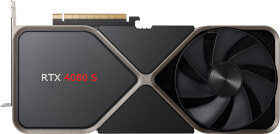
RTX 4080 S 
RTX-4090 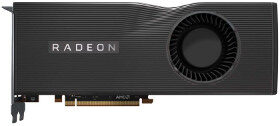
RX-5700XT 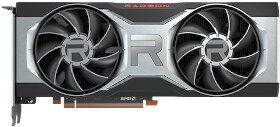
RX-5700XT 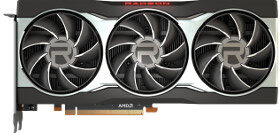
RX-6800 
RX-7900XTX 
RTX-3090 
RTX-3090 
RTX-4060