
Bottleneck Calculator
This is a free PC Bottleneck Calculator that analyzes your system using benchmark database to see if your CPU and GPU are balanced and ready for great performance.

Recommendations
If CPU score is much lower than GPU score → consider upgrading the CPU.
If GPU score is much lower than CPU score → consider upgrading the GPU.
For gaming setups, aim for GPU to slightly lead CPU.
Ensure at least 16 GB RAM for modern workloads to avoid penalty.
Balanced systems (under 10% bottleneck) yield best performance per dollar.

Quick Results
Input you CPU and GPU models and get instant results

Trusted Database
Based on several experiments, large and trusted database.

Smart Suggestions
Offers smart suggestions to fix the bottleneck issue.
What Is a PC Bottleneck and How Does This Tool Help You Find It?
Suppose you are on a highway in a car capable of 300 miles an hour. But, you reach a tunnel that allows only one car to pass at a time. Regardless of your car’s speed, you are going to wait and decelerate due to the restriction of the tunnel.
The same thing happens in a computer. If one part (CPU, GPU) is old or slow, it would not process data fast enough. Thus, despite the other components being new and strong, they cannot do well. This is what we call a PC bottleneck.
A bottleneck calculator assists you in solving this issue. It is a simple tool that analyzes your PC components and informs you which one is slowing down the process. Once you are aware of the weak part, you can make the right decision and spend money on upgrading it and improving the performance of your PC.

How to Detect Bottlenecks in Your System
Initially, you may notice the sudden loss of FPS or minor delay in games. However, when the problem persists, it can make your PC slower.
A bottleneck normally occurs when your CPU and GPU are not well balanced. As an extreme example, your CPU may be running at 80% usage while your GPU is barely being used. Or perhaps you got a new graphics card, but the latest game also requires a powerful CPU to perform.
This is where we come in with our tool. It lets you see exactly which part is slowing down your PC, so you do not waste time and money fixing the wrong part.
Why You Should Use a Bottleneck Calculator ?
You do not need much technical knowledge to analyze your system using this calculator. Just type in some basic details like your CPU, GPU, RAM, and screen resolution. That’s it!
The bottleneck calculator tests your CPU, GPU, RAM, storage type, and screen resolution and forecasts the results.
These calculators are not 100% perfect because analysis may vary due to factors like software changes, background apps, or overheating issues. But the results are still helpful for making general upgrade decisions.
Some in-game calculators are also useful, but they have limitations. In comparison, our tool displays detailed and helpful results using benchmark data.
Understanding Your Bottleneck Results
Let’s interpret the bottleneck percentage
<10% = Excellent performance
>10% = Needs review
>20% = Consider upgrading
>30% = Upgrading required
>50% = Strongly upgrade required
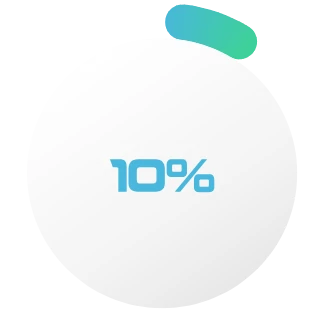
0–10%
Minimal (usually fine)
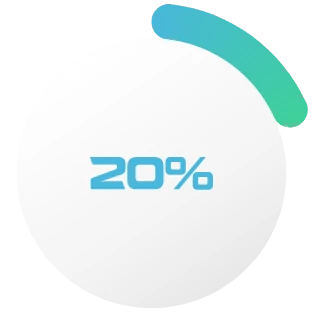
11–20%
Moderate (needs review)
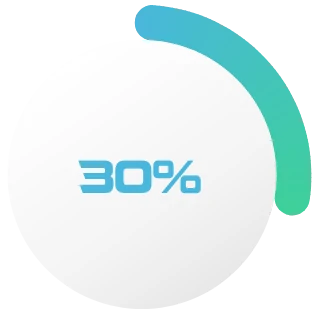
21–30%
Noticeable (upgrade soon)
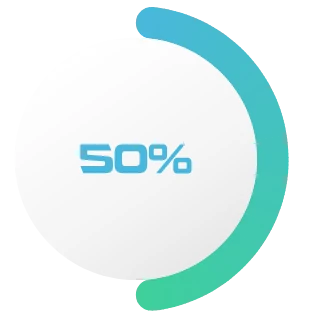
31% Plus
Major (upgrade needed)
CPU Vs GPU Bottleneck: Definition, Factors, Results and Solutions
CPU Bottleneck
A CPU bottleneck occurs when the processor can not keep up with the GPU.
Its commonly happen in games with heavy multitasking.
Reason:
Results:
Solution:
Upgrade the CPU to meet current and future system demands.
GPU Bottleneck
A GPU bottleneck occurs when the graphics card can not keep up with CPU.
Its common happens in graphically intensive games.
Reason:
Results:
Solution:
Upgrade the GPU to fix the issue and improve visuals for advanced graphics software.
Fixing the Different Types of System Bottlenecks
Let’s have quick view of how to fix the different types of PC bottleneck.
CPU Bottleneck Fixes
• Close unnecessary background applications
• Change the in-game settings (avoid maximum performance)
• If possible upgrade the processor
GPU Bottleneck Fixes
• Lower resolution or graphics settings
• Turn off anti-aliasing or shadows
• Replace the GPU with a better one
RAM Bottleneck Fixes
• Add more RAM (at least 16GB is great for modern systems)
• Check for background memory hogs
• Avoid running too many apps at once
Storage Bottleneck Fixes
• Switch from HDD to SSD (Game changer move)
• If using an HDD then keep your drive clean and defragment
• Clear temporary files and unused apps regularly

Additional Factors causing PC bottleneck and their solutions
Trending Graphic Cards
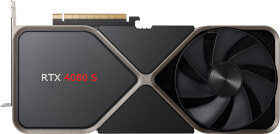
RTX 4080 S 
RTX-4090 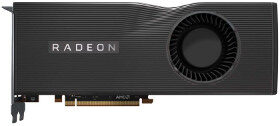
RX-5700XT 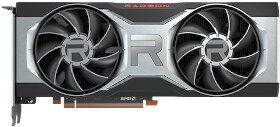
RX-5700XT 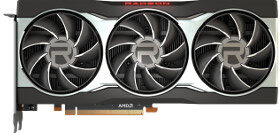
RX-6800 
RX-7900XTX 
RTX-3090 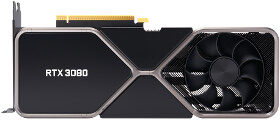
RTX-3090 
RTX-4060
Build smarter, Not harder.
Use your bottleneck results to choose balanced, cost-effective components and make every dollar count in your next PC build.
FAQs
Ready to Optimize Your PC?
This bottleneck calculator is your personal PC performance assistant. Run quick checks, compare results, and upgrade the right parts.